EEPECPS.
EPECPS - Employee Performance Evaluation and Career Progression System







A .NET 8 and Angular 20 employee performance evaluation system featuring Azure AD authentication, goal tracking, multi-level reviews, and reporting capabilities.
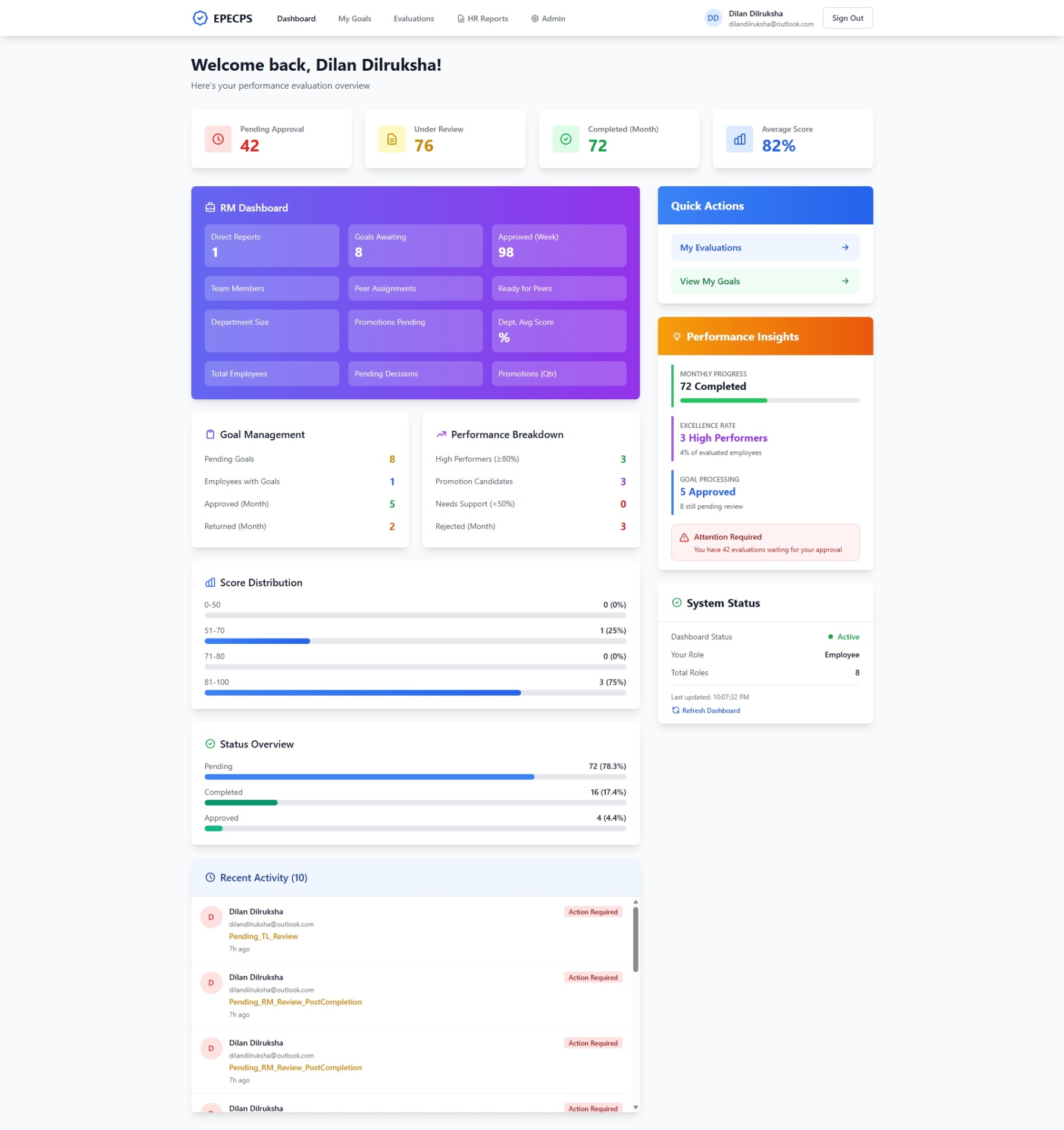
Table of Contents
- Overview
- Features
- Technology Stack
- Prerequisites
- Project Structure
- Getting Started
- Running the Application
- Database Migrations
- Configuration Guide
- API Documentation
- Troubleshooting
- Contributing
- License
Overview
EPECPS is a performance evaluation system that streamlines the employee review process with features like goal setting, peer reviews, multi-level approvals, and reporting. The system integrates with Microsoft Azure AD for authentication and authorization.
Features
Core Functionality
- Goal Management: Set, track, and evaluate employee goals with weighted scoring
- Multi-Level Reviews: Support for Self, Peer, Team Lead, and Reporting Manager reviews
- Approval Workflows: Structured approval process with HOD and GM levels
- Dashboard & Analytics: Real-time statistics and performance insights
- Email Notifications: Automated notifications for workflow events
- Comprehensive Reporting: Excel export with advanced filtering capabilities
- Azure AD Integration: Azure AD authentication and role-based access control
Advanced Features
- Score templates with customizable categories and items
- Personal goal tracking with activities and evidence
- Promotion case management
- Training recommendations
- Audit logging and approval history
- Document management for evaluations
Technology Stack
Backend
- Framework: .NET 8
- Database: SQL Server (Entity Framework Core 9.0)
- Authentication: Microsoft Identity Web (Azure AD)
- ORM: Entity Framework Core
- API Documentation: Swagger/OpenAPI
- Reporting: EPPlus (Excel generation)
- Logging: Serilog
Frontend
- Framework: Angular 20.3
- Authentication: @azure/msal-angular 4.0
- Styling: Tailwind CSS 3.4
- Language: TypeScript 5.9
- Build Tool: Angular CLI
Prerequisites
Before you begin, ensure you have the following installed:
Required Software
- Node.js: v18 or higher (Download)
- npm: v9 or higher (comes with Node.js)
- Angular CLI: v20 or higher
npm install -g @angular/cli - .NET SDK: 8.0 or higher (Download)
- SQL Server: 2019 or higher (LocalDB, Express, or full version)
- SQL Server Express
- LocalDB is included with Visual Studio
- Visual Studio 2022 (recommended) or VS Code
- Git: For version control
Azure Requirements
- Azure AD Tenant: For authentication and authorization
- App Registrations: Two app registrations (API and SPA) in Azure AD
- Access to Azure Portal with sufficient permissions
Project Structure
epecps/
├── backend/
│   ├── Epecps.Api/              # ASP.NET Core Web API
│   │   ├── Controllers/         # API Controllers
│   │   ├── Program.cs           # Application entry point
│   │   └── appsettings.json     # Configuration file
│   ├── Epecps.Application/      # Application layer (DTOs, Interfaces)
│   │   ├── DTOs/                # Data Transfer Objects
│   │   └── Interfaces/          # Service interfaces
│   ├── Epecps.Domain/           # Domain layer (Entities)
│   │   └── Entities/            # Domain models
│   └── Epecps.Infrastructure/   # Infrastructure layer (Data, Services)
│       ├── Persistence/         # EF Core DbContext
│       ├── Migrations/          # Database migrations
│       └── Services/            # Business logic services
└── frontend/
    └── epecps-web/              # Angular application
        ├── src/
        │   ├── app/             # Application components
        │   │   ├── core/        # Core modules (auth, guards)
        │   │   ├── services/    # API services
        │   │   ├── models/      # TypeScript models
        │   │   ├── employee/    # Employee feature module
        │   │   └── pages/       # Page components
        │   └── environments/    # Environment configurations
        └── package.json         # npm dependencies
Getting Started
1. Clone the Repository
git clone https://github.com/dilrukshax/epecps.git
cd epecps
2. Backend Setup
Install Dependencies
Navigate to the API project directory:
cd backend/Epecps.Api
Restore NuGet packages:
dotnet restore
Configure Database Connection
Edit backend/Epecps.Api/appsettings.json:
{
  "ConnectionStrings": {
    "DefaultConnection": "Server=(localdb)\\mssqllocaldb;Database=EpecpsDb;Trusted_Connection=True;MultipleActiveResultSets=true"
  }
}
Connection String Options:
For LocalDB (Development):
"Server=(localdb)\\mssqllocaldb;Database=EpecpsDb;Trusted_Connection=True;MultipleActiveResultSets=true"
For SQL Server Express:
"Server=localhost\\SQLEXPRESS;Database=EpecpsDb;Trusted_Connection=True;MultipleActiveResultSets=true;TrustServerCertificate=True"
For SQL Server with Authentication:
"Server=your-server;Database=EpecpsDb;User Id=your-username;Password=your-password;MultipleActiveResultSets=true;TrustServerCertificate=True"
For Azure SQL Database:
"Server=tcp:your-server.database.windows.net,1433;Database=EpecpsDb;User Id=your-username;Password=your-password;Encrypt=True;TrustServerCertificate=False;Connection Timeout=30;"
3. Frontend Setup
Navigate to the frontend directory:
cd ../../frontend/epecps-web
Install npm packages:
npm install
Configure API URL
Edit frontend/epecps-web/src/environments/environment.ts:
export const environment = {
  production: false,
  apiUrl: 'https://localhost:7275' // Your backend API URL
};
4. Azure AD Configuration
You need to create two app registrations in Azure AD: one for the API and one for the SPA (frontend).
Step 1: Create API App Registration
- Go to Azure Portal
- Navigate to Azure Active Directory > App registrations > New registration
- Configure:
- Name:
EPECPS API - Supported account types: Single tenant
- Redirect URI: Leave empty for now
- Name:
- Click Register
- Note down:
- Application (client) ID
- Directory (tenant) ID
Step 2: Expose API (API App Registration)
- In the API app registration, go to Expose an API
- Click Set next to Application ID URI
- Accept the default URI:
api://{client-id}or use custom:api://epecps-api - Click Add a scope:
- Scope name:
Epecps.ReadWrite - Who can consent: Admins and users
- Admin consent display name:
Access EPECPS API - Admin consent description:
Allows the app to access EPECPS API - State: Enabled
- Scope name:
- Click Add scope
Step 3: Add App Roles (API App Registration)
- Go to App roles > Create app role
- Create the following roles:
| Display Name | Value | Description | Allowed member types |
|---|---|---|---|
| Employee | Employee | Regular employee | Users/Groups |
| Team Lead | TL | Team Lead | Users/Groups |
| Reporting Manager | RM | Reporting Manager | Users/Groups |
| Head of Department | HOD | Head of Department | Users/Groups |
| General Manager | GM | General Manager | Users/Groups |
| HR | HR | Human Resources | Users/Groups |
| Admin | Admin | System Administrator | Users/Groups |
Step 4: Create SPA App Registration
- Create another app registration: EPECPS SPA
- Configure:
- Name:
EPECPS SPA - Supported account types: Single tenant
- Redirect URI:
- Type: Single-page application (SPA)
- URL:
http://localhost:4200(or your dev URL)
- Name:
- Note down the Application (client) ID
Step 5: Configure SPA Permissions
- In the SPA app registration, go to API permissions
- Click Add a permission > My APIs
- Select EPECPS API
- Select Delegated permissions
- Check Epecps.ReadWrite
- Click Add permissions
- Click Grant admin consent (if you have admin rights)
Step 6: Update Backend Configuration
Edit backend/Epecps.Api/appsettings.json:
{
  "AzureAd": {
    "Instance": "https://login.microsoftonline.com/",
    "TenantId": "YOUR-TENANT-ID",
    "ClientId": "YOUR-API-CLIENT-ID",
    "AppIdUri": "api://YOUR-API-CLIENT-ID",
    "ValidIssuers": [
      "https://login.microsoftonline.com/YOUR-TENANT-ID/v2.0",
      "https://sts.windows.net/YOUR-TENANT-ID/"
    ],
    "Scopes": "Epecps.ReadWrite"
  }
}
Step 7: Update Frontend Configuration
Edit frontend/epecps-web/src/app/core/auth/msal-config.ts:
export const msalConfig: Configuration = {
  auth: {
    clientId: 'YOUR-SPA-CLIENT-ID',
    authority: 'https://login.microsoftonline.com/YOUR-TENANT-ID',
    redirectUri: 'http://localhost:4200',
    postLogoutRedirectUri: 'http://localhost:4200'
  },
  cache: {
    cacheLocation: 'localStorage',
    storeAuthStateInCookie: false
  }
};

export const protectedResources = {
  epecpsApi: {
    endpoint: 'https://localhost:7275',
    scopes: ['api://YOUR-API-CLIENT-ID/Epecps.ReadWrite']
  }
};
5. Database Setup
Apply Migrations
Navigate to the API project:
cd backend/Epecps.Api
Option 1: Using Entity Framework CLI
Install EF Core tools globally (if not already installed):
dotnet tool install --global dotnet-ef
Create the database and apply migrations:
dotnet ef database update
Option 2: Using Package Manager Console (Visual Studio)
- Open Package Manager Console: Tools > NuGet Package Manager > Package Manager Console
- Set Default project to
Epecps.Infrastructure - Run:
Update-Database
Create New Migration (When Needed)
# Using CLI
dotnet ef migrations add MigrationName -s Epecps.Api -p ../Epecps.Infrastructure

# Using Package Manager Console
Add-Migration MigrationName
Seed Initial Data
The application includes a database seeder that creates initial roles and sample data. It runs automatically on first startup.
To manually run the seeder:
- Start the API application
- The seeder will check and create:
- Default roles (Employee, TL, RM, HOD, GM, HR, Admin)
- Sample departments
- Sample users (optional)
6. Email Configuration
Configure email settings in backend/Epecps.Api/appsettings.json:
For Gmail:
- Enable 2-factor authentication on your Google account
- Generate an App Password: Google App Passwords
- Update configuration:
{
  "EmailSettings": {
    "SmtpServer": "smtp.gmail.com",
    "SmtpPort": 587,
    "SenderEmail": "your-email@gmail.com",
    "SenderName": "EPECPS System",
    "EnableSsl": true,
    "Username": "your-email@gmail.com",
    "Password": "your-16-character-app-password",
    "MaxRetryAttempts": 3,
    "RetryDelaySeconds": 5,
    "EnableBackgroundProcessing": true,
    "BaseUrl": "http://localhost:4200"
  }
}
For Microsoft 365:
{
  "EmailSettings": {
    "SmtpServer": "smtp.office365.com",
    "SmtpPort": 587,
    "SenderEmail": "your-email@company.com",
    "SenderName": "EPECPS System",
    "EnableSsl": true,
    "Username": "your-email@company.com",
    "Password": "your-password",
    "MaxRetryAttempts": 3,
    "RetryDelaySeconds": 5,
    "EnableBackgroundProcessing": true,
    "BaseUrl": "http://localhost:4200"
  }
}
For Development (Optional)
To disable email sending during development, set:
"EnableBackgroundProcessing": false
Running the Application
Start Backend (API)
Option 1: Using Visual Studio
- Open
backend/Epecps.slnin Visual Studio - Set
Epecps.Apias startup project - Press F5 or click Run
- API will start at:
https://localhost:7275
Option 2: Using CLI
cd backend/Epecps.Api
dotnet run
Option 3: Using dotnet watch (auto-reload)
cd backend/Epecps.Api
dotnet watch run
Start Frontend (Angular)
Open a new terminal:
cd frontend/epecps-web
npm start
# or
ng serve
The application will start at: http://localhost:4200
Access the Application
- Frontend: http://localhost:4200
- Backend API: https://localhost:7275
- Swagger UI: https://localhost:7275/swagger
Default Credentials
After seeding, you can use test users created by the seeder. Check the DatabaseSeeder.cs file for user details or create users through Azure AD sync.
Database Migrations
Common Migration Commands
# Create a new migration
dotnet ef migrations add MigrationName -s Epecps.Api -p ../Epecps.Infrastructure

# Apply migrations to database
dotnet ef database update -s Epecps.Api -p ../Epecps.Infrastructure

# Rollback to a specific migration
dotnet ef database update MigrationName -s Epecps.Api -p ../Epecps.Infrastructure

# Remove last migration (if not applied)
dotnet ef migrations remove -s Epecps.Api -p ../Epecps.Infrastructure

# Generate SQL script from migrations
dotnet ef migrations script -s Epecps.Api -p ../Epecps.Infrastructure -o migration.sql

# Drop database (WARNING: Deletes all data)
dotnet ef database drop -s Epecps.Api -p ../Epecps.Infrastructure
Package Manager Console Commands
# Create migration
Add-Migration MigrationName

# Apply migrations
Update-Database

# Rollback
Update-Database -Migration MigrationName

# Remove last migration
Remove-Migration

# Generate SQL script
Script-Migration
Configuration Guide
Backend Configuration (appsettings.json)
{
  "ConnectionStrings": {
    "DefaultConnection": "YOUR_CONNECTION_STRING"
  },
  "AzureAd": {
    "Instance": "https://login.microsoftonline.com/",
    "TenantId": "YOUR_TENANT_ID",
    "ClientId": "YOUR_API_CLIENT_ID",
    "AppIdUri": "api://YOUR_API_CLIENT_ID",
    "ValidIssuers": [
      "https://login.microsoftonline.com/YOUR_TENANT_ID/v2.0",
      "https://sts.windows.net/YOUR_TENANT_ID/"
    ],
    "Scopes": "Epecps.ReadWrite"
  },
  "EmailSettings": {
    "SmtpServer": "smtp.gmail.com",
    "SmtpPort": 587,
    "SenderEmail": "your-email@gmail.com",
    "SenderName": "EPECPS System",
    "EnableSsl": true,
    "Username": "your-email@gmail.com",
    "Password": "your-password",
    "MaxRetryAttempts": 3,
    "RetryDelaySeconds": 5,
    "EnableBackgroundProcessing": true,
    "BaseUrl": "http://localhost:4200"
  },
  "Logging": {
    "LogLevel": {
      "Default": "Information",
      "Microsoft.AspNetCore": "Warning"
    }
  },
  "AllowedHosts": "*"
}
Frontend Configuration
Environment Settings (src/environments/environment.ts)
export const environment = {
  production: false,
  apiUrl: 'https://localhost:7275'
};
Production Environment (src/environments/environment.prod.ts)
export const environment = {
  production: true,
  apiUrl: 'https://your-production-api.com'
};
API Documentation
Swagger UI
When running in development mode, access Swagger UI at:
Key API Endpoints
Authentication
- Uses Azure AD Bearer tokens
- All endpoints require authentication
- Role-based authorization enforced
Evaluations
GET /api/evaluations- Get all evaluationsGET /api/evaluations/{id}- Get evaluation detailsPOST /api/evaluations- Create new evaluationPUT /api/evaluations/{id}- Update evaluationPOST /api/evaluations/{id}/submit-self-review- Submit self reviewPOST /api/evaluations/{id}/tl-complete-review- Team Lead reviewPOST /api/evaluations/{id}/rm-approve- RM approval
Goals
GET /api/personal-goals- Get personal goalsPOST /api/personal-goals- Create goalPUT /api/personal-goals/{id}- Update goalPOST /api/personal-goals/{id}/start- Start goalPOST /api/personal-goals/{id}/complete- Complete goal
Reports
GET /api/reports/evaluations- Get evaluation report dataPOST /api/reports/evaluations/export- Export to Excel
Dashboard
GET /api/dashboard/stats- Get dashboard statistics
Authentication in Swagger
- Click Authorize button
- Login with Azure AD credentials
- Token will be automatically included in requests
Troubleshooting
Common Issues
1. Database Connection Errors
Problem: Cannot connect to database
Solutions:
# Check if SQL Server is running
# For LocalDB:
sqllocaldb info
sqllocaldb start mssqllocaldb

# For SQL Server service:
# Open Services (services.msc) and ensure SQL Server service is running
2. Migration Errors
Problem: Migration fails or database is out of sync
Solutions:
# Drop and recreate database
dotnet ef database drop -s Epecps.Api -p ../Epecps.Infrastructure
dotnet ef database update -s Epecps.Api -p ../Epecps.Infrastructure

# Or reset migrations
# Delete Migrations folder in Epecps.Infrastructure
# Create new initial migration
dotnet ef migrations add InitialCreate -s Epecps.Api -p ../Epecps.Infrastructure
dotnet ef database update -s Epecps.Api -p ../Epecps.Infrastructure
3. Azure AD Authentication Issues
Problem: 401 Unauthorized errors
Solutions:
- Verify Azure AD configuration in
appsettings.json - Check app registration IDs are correct
- Ensure API permissions are granted in Azure portal
- Clear browser cache and tokens
- Check token expiration
- Verify user has assigned app roles
4. CORS Errors
Problem: Frontend cannot access API
Solutions:
- Verify CORS policy in
Program.csincludes your frontend URL - Check frontend is running on the allowed port (64291 or 4200)
- Update CORS policy if needed:
services.AddCors(opt =>
{
    opt.AddPolicy("SpaDev", p =>
        p.WithOrigins("http://127.0.0.1:64291", "http://localhost:64291", "http://localhost:4200")
         .AllowAnyHeader()
         .AllowAnyMethod());
});
5. Email Not Sending
Problem: Emails are not being sent
Solutions:
- Verify SMTP credentials in
appsettings.json - For Gmail: Ensure App Password is used (not regular password)
- Check
EnableBackgroundProcessingis set totrue - Verify SMTP server and port are correct
- Check firewall/antivirus isn't blocking SMTP ports
- Review application logs for email errors
6. Port Already in Use
Problem: Port 7275 or 4200 already in use
Solutions:
# Backend: Change port in launchSettings.json
# Or kill process using the port (Windows):
netstat -ano | findstr :7275
taskkill /PID <PID> /F

# Frontend: Run on different port
ng serve --port 4201
7. Node/npm Issues
Problem: npm install fails or package conflicts
Solutions:
# Clear npm cache
npm cache clean --force

# Delete node_modules and package-lock.json
rm -rf node_modules package-lock.json

# Reinstall
npm install

# Use legacy peer deps if needed
npm install --legacy-peer-deps
Development Tips
Hot Reload
- Backend: Use
dotnet watch runfor automatic reload on code changes - Frontend: Angular CLI automatically reloads on save
Database Changes
- Modify entity classes in
Epecps.Domain/Entities - Create migration:
dotnet ef migrations add YourMigrationName -s Epecps.Api -p ../Epecps.Infrastructure - Review generated migration in
Epecps.Infrastructure/Migrations - Apply migration:
dotnet ef database update -s Epecps.Api -p ../Epecps.Infrastructure
Code Structure
- Domain Layer: Business entities and core logic
- Application Layer: DTOs, interfaces, business rules
- Infrastructure Layer: Data access, external services
- API Layer: Controllers, middleware, configuration
Testing
# Backend tests (if implemented)
dotnet test

# Frontend tests
cd frontend/epecps-web
ng test

# E2E tests
ng e2e
Production Deployment
Backend Deployment
- Update
appsettings.Production.jsonwith production values - Build for production:
dotnet publish -c Release -o ./publish
- Deploy to:
- Azure App Service
- IIS
- Docker container
- Linux server with Kestrel
Frontend Deployment
- Update
environment.prod.tswith production API URL - Build for production:
ng build --configuration production
- Deploy
dist/epecps-webto:- Azure Static Web Apps
- Azure App Service
- AWS S3 + CloudFront
- nginx/Apache
Environment Variables
Consider using environment variables for sensitive data:
- Connection strings
- Azure AD credentials
- Email credentials
- API keys
Security Considerations
- Never commit
appsettings.jsonwith real credentials - Use Azure Key Vault for production secrets
- Enable HTTPS in production
- Implement rate limiting
- Regular security audits
- Keep dependencies updated
Contributing
- Fork the repository
- Create a feature branch:
git checkout -b feature/your-feature - Commit changes:
git commit -am 'Add new feature' - Push to branch:
git push origin feature/your-feature - Submit a Pull Request
Coding Standards
- Follow C# coding conventions
- Follow Angular style guide
- Write meaningful commit messages
- Add XML documentation to public APIs
- Write unit tests for new features
Support
For issues and questions:
- Create an issue on GitHub
- Check existing documentation
- Review Swagger API documentation
License
This project is licensed under the MIT License — see LICENSE.
Acknowledgments
- Microsoft Identity Platform
- Angular Team
- Entity Framework Core Team
Author
Dilan Dilruksha
Software Engineer | Backend & Full-Stack Development
Portfolio: https://dilandilruksha.dev
LinkedIn: https://www.linkedin.com/in/dilan-dilruksha
GitHub: https://github.com/dilrukshax
Enterprise performance management system handling multi-level reviews — self, peer, team lead, reporting manager — with approval workflows across HOD and GM tiers. Goal-setting, audit logging, and Excel reporting are first-class so HR teams can run a full review cycle without leaving the app.
Architected on .NET with EF Core for the data layer and EPPlus for spreadsheet exports. Azure AD for authentication with RBAC via app roles and delegated scopes. Serilog-centralized logging, RESTful APIs throughout, and Docker for repeatable deploys.